
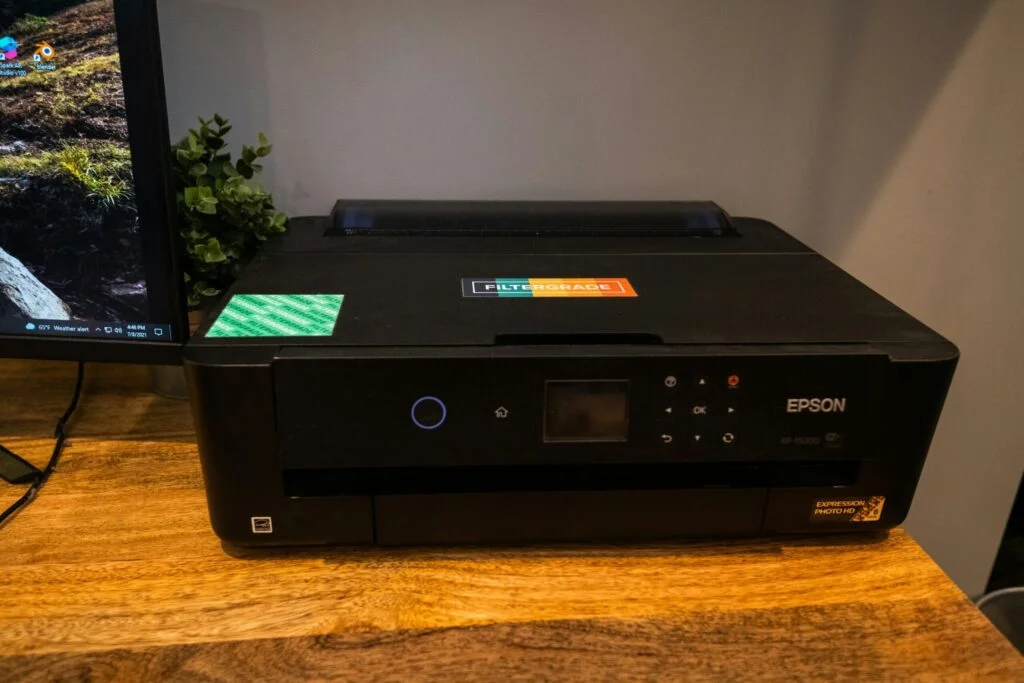
When you change your router or update your Wi-Fi name and password, the printer doesn’t automatically reconnect. It still looks for the old network, which is why it suddenly appears offline. The solution is simple: connect the printer to the new 2.4 GHz Wi-Fi, give it a stable IP, and then refresh the printer entry on your computer. Do it in this order and the whole process stays smooth.
Below is the complete guide that works for almost every home printer—HP, Canon, Epson, Brother, all of them.
1. Choose the Right Reconnection Method
Different printers support different ways of joining Wi-Fi. Pick whichever your machine offers.
| Method | Best For | How It Works |
|---|---|---|
| Official App | Most modern printers | App creates a temporary link, then sends new Wi-Fi details |
| On-Device Panel | Printers with screens | Pick SSID → enter password → connect |
| WPS Push-Button | If router & printer support WPS | Press router WPS → press printer WPS → paired |
| USB → Wireless | Screenless or older models | Connect via USB once, send Wi-Fi details, then unplug |
Method A — Reconnect Using the Official App
This is usually the simplest and cleanest approach.
- Place the printer close to the router.
- Connect your phone or laptop to the new 2.4 GHz Wi-Fi.
- Open the manufacturer’s setup utility → choose Add / Setup Printer.
- When prompted, select your new Wi-Fi name and enter the password carefully.
- Wait until the printer’s Wi-Fi light turns steady.
- Print a test page from the app.
Method B — Use the Printer’s On-Device Screen
If your printer has a display, reconnect directly from there.
- Open Network / Wireless Settings.
- Select your new Wi-Fi name (2.4 GHz).
- Enter the password and confirm.
- Wait for a stable Wi-Fi icon.
- Print a network report and note the new IP address.
Method C — WPS (Push-Button)
For printers and routers that support WPS.
- Press the WPS button on the router.
- Within two minutes, press WPS on the printer (button or menu).
- Once the connection settles, print a network report and save the IP.
Method D — USB Setup for Screenless Printers
Perfect for older or budget models.
- Connect printer to your computer with a USB cable.
- Open the brand’s setup tool.
- Choose Wireless Setup / Convert USB to Wireless.
- Select the new 2.4 GHz network → enter password → finish.
- Unplug the USB cable.
2. Lock the IP for Stability (DHCP Reservation)
After the printer reconnects:
- Log in to your router.
- Open the DHCP / LAN section.
- Bind the printer’s MAC address to its current IP.
This stops the printer’s IP from changing every time it restarts. It also makes Windows and macOS far more reliable.
3. Re-Add the Printer on Windows
Remove old entries first; they point to the old network.
- Settings → Bluetooth & devices → Printers & scanners
- Remove the old printer entry.
- Click Add device.
- If Windows doesn’t find it, choose Add manually →
Add a printer using its TCP/IP address → enter the reserved IP. - Prefer IPP; if unavailable, choose TCP/IP (Raw 9100).
- Set as default → print a test page.
If Windows shows the printer as Offline:
Go to Printer Properties → Ports → Configure Port → untick SNMP Status Enabled.
4. Re-Add the Printer on macOS
- System Settings → Printers & Scanners
- Delete the old printer entry.
- Click Add Printer.
- If the printer appears under Default, add it as AirPrint.
- Otherwise, open the IP tab → enter the printer’s IP → Protocol: IPP.
- Add → test print.
Mesh, Guest Network & Isolation Issues
These are the hidden problems behind many “printer offline” cases.
- Guest Wi-Fi: Blocks printers from talking to computers. Use your main SSID.
- Mesh networks: Do setup near the same mesh node; after that the printer will roam fine.
- Band steering: If the router forces 5 GHz, temporarily split the bands so the printer can choose 2.4 GHz.
Phones & Tablets
Once the printer joins the new network:
- iPhone/iPad: It appears automatically under Share → Print (AirPrint).
- Android: Go to Settings → Printing → enable Print Service → use Share → Print.
Common Connection Errors (Decoded Simply)
| Message | Meaning | Fix |
|---|---|---|
| No AirPrint Printers Found | Devices are on different networks or VPN is active | Use same SSID, disable VPN, check printer Wi-Fi light |
| Windows can’t find the printer | Discovery blocked | Add by IP, reserve IP, disable SNMP status |
| Jobs stuck in queue | Wrong port or stale system entry | Switch to IPP, clear queue, restart print spooler |
Make Future Router Changes Easy
- Reuse the same Wi-Fi name and password when upgrading routers. Everything reconnects automatically.
- Keep the printer on a reserved IP for long-term stability.
- Save print presets like “A4 – Normal – Duplex” so defaults stay predictable.