
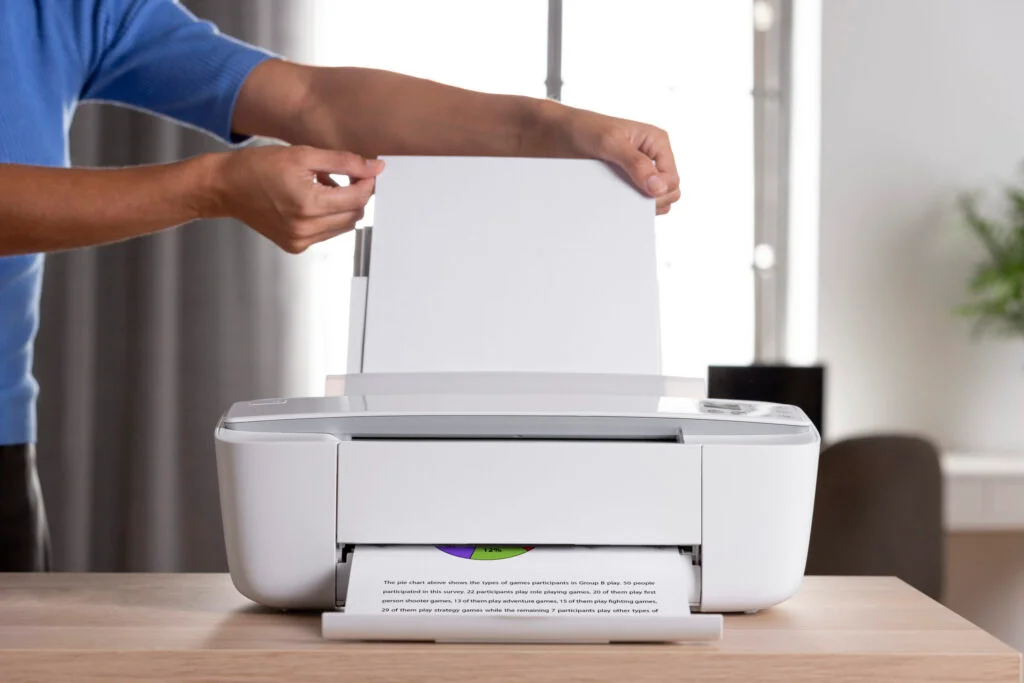
Printing from your phone at home is straightforward when you follow a simple order: connect the printer to the right Wi-Fi band, keep your phone on the same network, use the built-in print tools on your device, and run a small test before printing anything important. Most issues—like “printer not found”, half-printed photos, or pages shrinking—come from network mismatches, guest Wi-Fi, or choosing the wrong paper settings.
The steps here stay brand-neutral and work with most home printers that support today’s mobile standards.
On iPhone and iPad, printing works through AirPrint: tap Share → Print, choose your printer, and adjust options such as copies, duplex, range and “fit to page”. On Android, the Android Print Service (Mopria-compatible) handles the job. Once enabled, you can open any photo, PDF or web page, tap Share → Print, select your printer, and set your preferences.
If you don’t have access to a router or you’re somewhere with restrictive Wi-Fi, most printers can create a temporary Wi-Fi Direct network. Your phone joins it for one-to-one printing without internet. This guide explains all three methods and also covers smart workflows—like exporting to PDF, combining images into a single document, and getting clean duplex output without upside-down pages.
Everything here is purely educational. No remote access, no brand-specific apps, and no device-specific troubleshooting. Just simple steps that work across most home setups. For the best start, keep the printer close to the router, use the 2.4 GHz band, join your phone to the same SSID, and avoid guest networks that block device-to-device communication.
At a glance — choose the fastest method
Home Wi-Fi working; printer already on Wi-Fi
Use AirPrint (iOS) or Android Print Service — both rely on built-in system printing.
No router or home network is restricted
Use Wi-Fi Direct — the printer creates a temporary network.
USB-only printers
Share the file to a computer and print from there.
Need perfect scaling or duplex
Export to PDF first; print the PDF.
Prepare once — and avoid most “printer not found” issues
- Connect the printer to 2.4 GHz Wi-Fi; many printers don’t support 5 GHz.
- Make sure your phone uses the same network name.
- Avoid guest networks or modes that isolate devices.
- Turn off VPN on your phone for the first test.
- Load fresh A4 and adjust guides properly.