
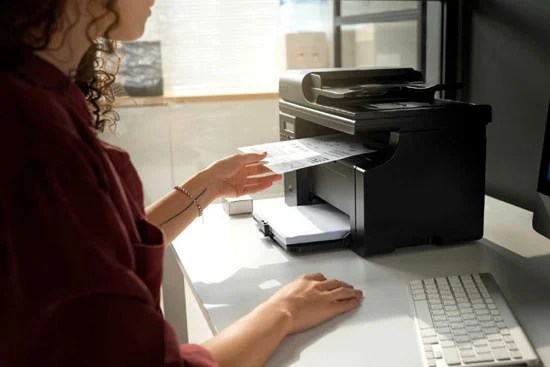
A new printer should be simple to set up, but small mistakes can cause a lot of frustration. This guide walks you from unboxing to your first clean print in the smoothest order possible. Everything here is brand-neutral and explains only general steps you can safely follow at home.
You’ll pick the right connection method, join the printer to Wi-Fi correctly, add it properly on Windows and macOS, set the right defaults, and make sure the printer stays reliable in the long run.
The real trick is keeping things stable:
• connect the printer to 2.4 GHz Wi-Fi,
• reserve its IP address in your router, and
• prefer IPP/AirPrint or TCP/9100 instead of older, unreliable ports.
During first-time setup, keep the printer within a couple of metres of your router so nothing drops mid-process.
Part 1 — Unboxing & Placement (about 2 minutes)
• Remove all blue/orange tapes and protective packing—check inside the cartridge area as well.
• Place the printer somewhere stable with good airflow.
• If you plan to use Wi-Fi, keep it close to your router during the initial connection.
Part 2 — Power On & Basic Setup
• Load 10–15 sheets of clean A4 paper and adjust the guides so the stack sits snugly.
• Plug in the power cable and switch on the printer.
• Let it finish any startup routines before you try printing.
Part 3 — Pick Your Connection Type
| Path | When to Choose | Why It Helps |
|---|---|---|
| USB | For quick confirmation that everything works | Removes Wi-Fi from the equation for early tests |
| Wi-Fi (2.4 GHz) | Normal home use | Handy for all devices including phones |
| Ethernet | Printer is near the router | Most stable option in any setup |
Part 4 — Join the Printer to Wi-Fi Properly
Your printer will support at least one of these options:
Option A — Setup App (Recommended)
- Connect your phone or laptop to your home 2.4 GHz network (skip guest networks and VPNs).
- Open the printer’s official setup tool.
- Choose Add printer.
- Select your Wi-Fi name and enter the password carefully.
- Wait for the printer’s Wi-Fi indicator to stay steady.
Option B — Using the Printer’s Control Panel
- On the printer display, open Network / Wireless settings.
- Choose Wi-Fi → Join and select your Wi-Fi name.
- Enter the password and confirm.
- Look for a stable Wi-Fi icon.
Option C — WPS (Only if both devices support it)
- Press the router’s WPS button.
- Within two minutes, start WPS on the printer.
- Wait for the printer to confirm the connection.
If Wi-Fi won’t connect:
Connect the printer using USB first, then use the setup app to switch it from USB to wireless. This reliably sends the Wi-Fi details.
Part 5 — Adding the Printer on Windows
- Open Settings → Bluetooth & devices → Printers & scanners → Add device.
- If you see multiple entries, pick the one labelled Web Services / IPP / AirPrint.
- Print a quick test page.
- If nothing appears, choose Add manually → Add a printer using its TCP/IP address, then enter the IP shown in your printer’s network details.
- Choose IPP (preferred) or TCP/9100 when asked.
- If the printer shows Offline on TCP, open Printer properties → Ports → Configure Port and turn off SNMP Status Enabled.
Part 6 — Adding the Printer on macOS
- Open System Settings → Printers & Scanners → Add Printer.
- Choose the entry tagged AirPrint and add it.
- If it doesn’t show up, switch to the IP tab and enter the printer’s IP address.
- Select IPP as the protocol.
Part 7 — Set Correct Defaults (A4, Duplex, Colour)
Windows
• Open Printer preferences.
• Set Paper size: A4, enable duplex if supported, and choose your default colour mode.
• Some apps override settings, so check Page Setup in Word or your browser when needed.
macOS
• In the print window, adjust your settings (A4 + duplex).
• Save them as a Preset, and tick Only this printer to apply consistently.
Part 8 — First Meaningful Test Pages
• Windows test page to confirm the driver path.
• A simple text document to check margins and A4 alignment.
• A duplex test to see if both sides line up correctly.
Part 9 — Keep the Printer Reliable
• Reserve the printer’s IP address in your router so it never changes.
• Keep the printer on the 2.4 GHz band.
• Remove any duplicate printers (like “Copy 1” or “Copy 2”).
Quick Troubleshooting Tips
• Printer not showing: make sure the same SSID is used, turn off VPN, move closer, or add by IP using IPP.
• Stuck on Offline: switch to IPP/TCP and disable SNMP if on TCP; ensure the IP is reserved.
• macOS prints once then disappears: remove and re-add as AirPrint; if needed, reset the printing system and start fresh.
• Weak Wi-Fi: avoid cupboards or metal shelves; keep the printer close to the router, especially during setup.