
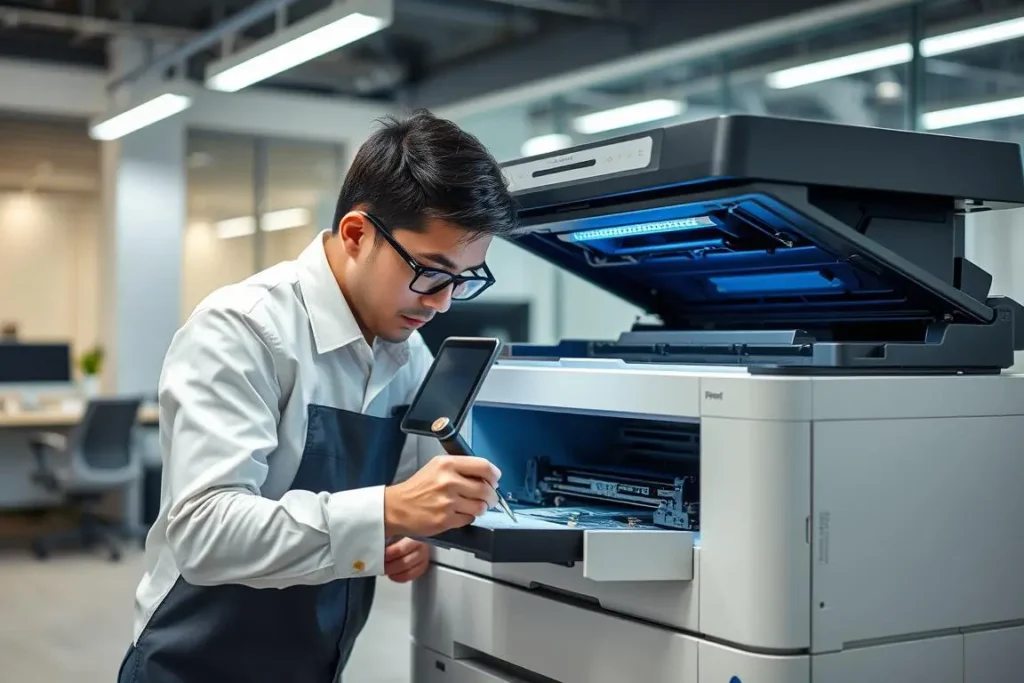
When your printer won’t print, it feels like everything comes to a halt—especially when you need a document urgently. The good thing is most printing issues come from small problems that don’t take long to fix.
1. Check the Basics First
Make sure the printer is switched on, has paper in the tray, and there are no jammed sheets inside. A loose power cable or USB connection can stop printing instantly.
2. Look for Error Lights
Most printers show a blinking light or short message when something is wrong. Low ink, paper jam, or cartridge errors are common reasons your printer won’t start a job.
3. Restart the Printer and Computer
Sometimes the system freezes the print command. Restarting refreshes the queue and often gets everything working again.
4. Clear the Print Queue
Open your print queue and remove stuck or pending print jobs. A jammed queue can block every new print request.
5. Check Wi-Fi or USB Connection
If you use a wireless printer, make sure it’s still connected to the same network as your computer. For wired printers, try changing the cable or port.
6. Update the Printer Drivers
Outdated drivers can stop the device from responding. Updating them from the official website usually solves this problem quickly.